
Fill your calendar. Stop the back and forth.
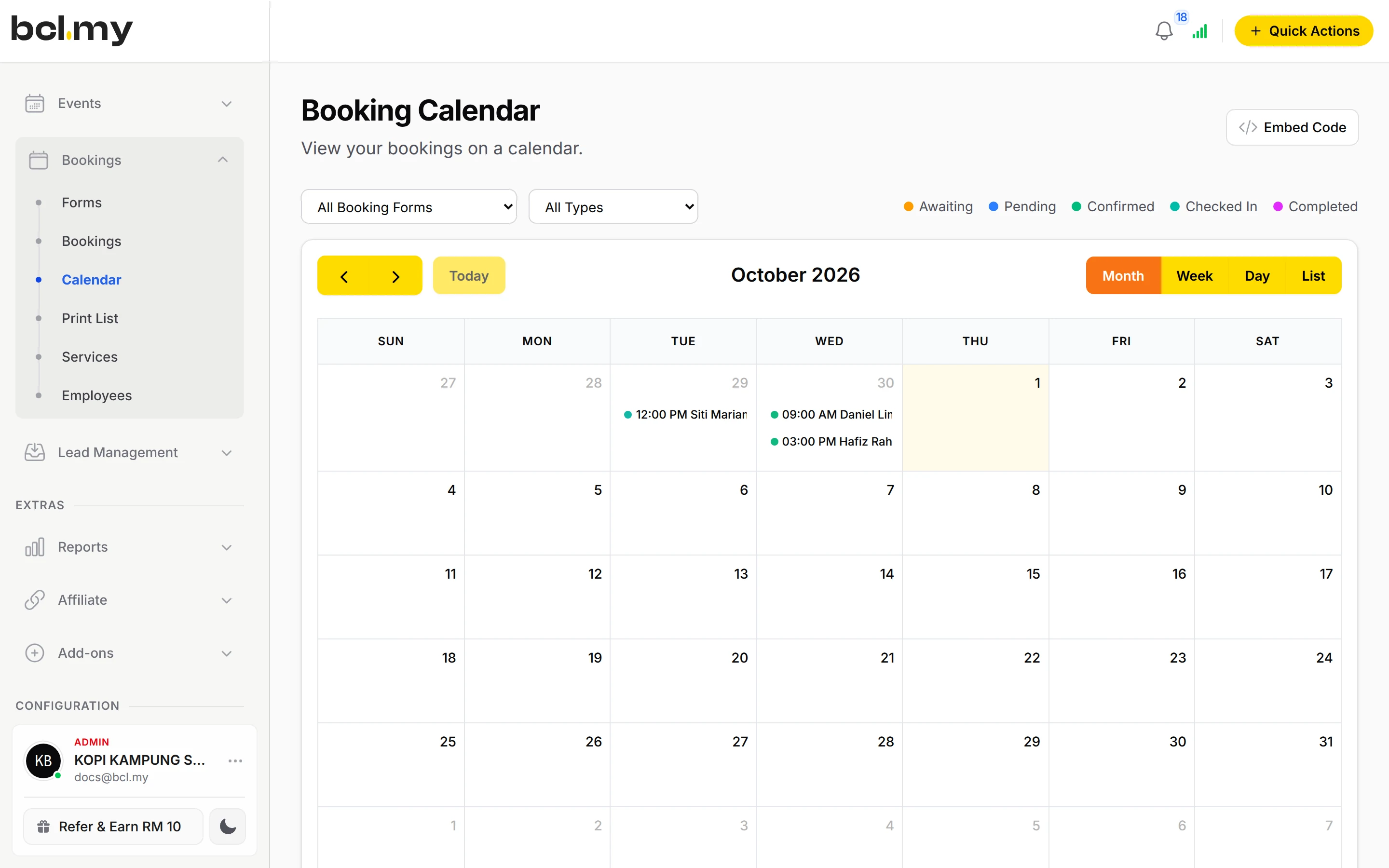
Customers pick a service, a time and a staff member, then pay. You stop asking 'slot ada lagi tak?'.
Trusted by these companies











Before & after BCL
How it works
What you can do
Five booking types
Appointment, Reservation, Ticket, Accommodation and Court.
Staff hours
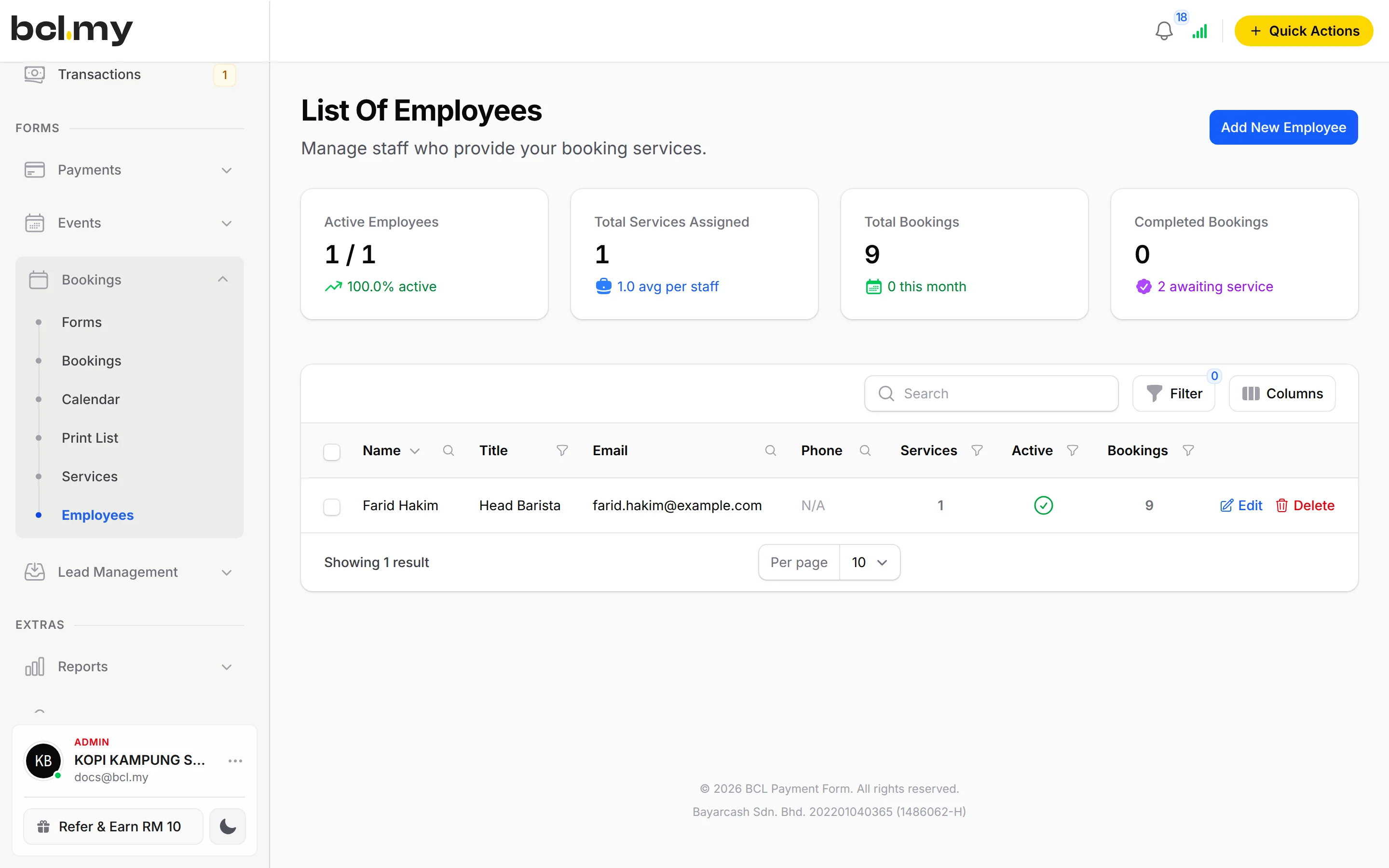
Each employee has working days and hours. Customers can pick a staff member or leave it to you.
Weekend & peak prices
Day & Time Rates charge a different price on weekends, public holidays or at certain times.
Walk-ins & rescheduling
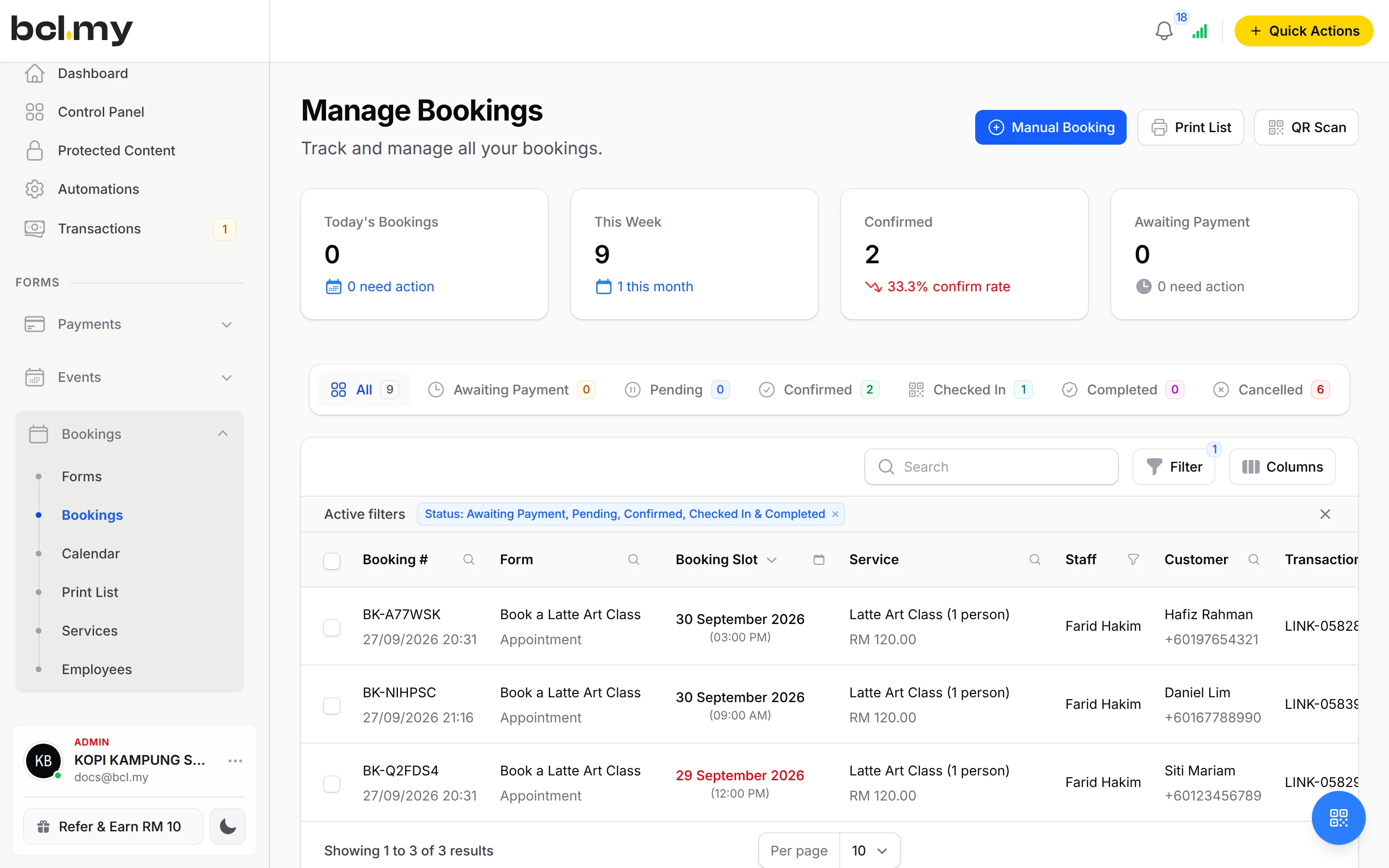
Add a booking by hand with Manual Booking, and move it with Reschedule.
QR check-in
Every booking email has a QR code. Scan it on arrival to mark the booking Checked In.
Booking statuses
Follow each booking from Awaiting Payment to Confirmed, Checked In, Completed, Cancelled or No Show.
Who uses it
How your customers pay
Customers pay online when they book, by FPX or DuitNow QR as standard. Cards, e-wallets and Buy Now Pay Later appear once Bayarcash switches them on. Money goes through Bayarcash to your bank and BCL records the sale. Real payments need an approved Bayarcash account. You can build and test your booking form in Test Mode first.
Good to know
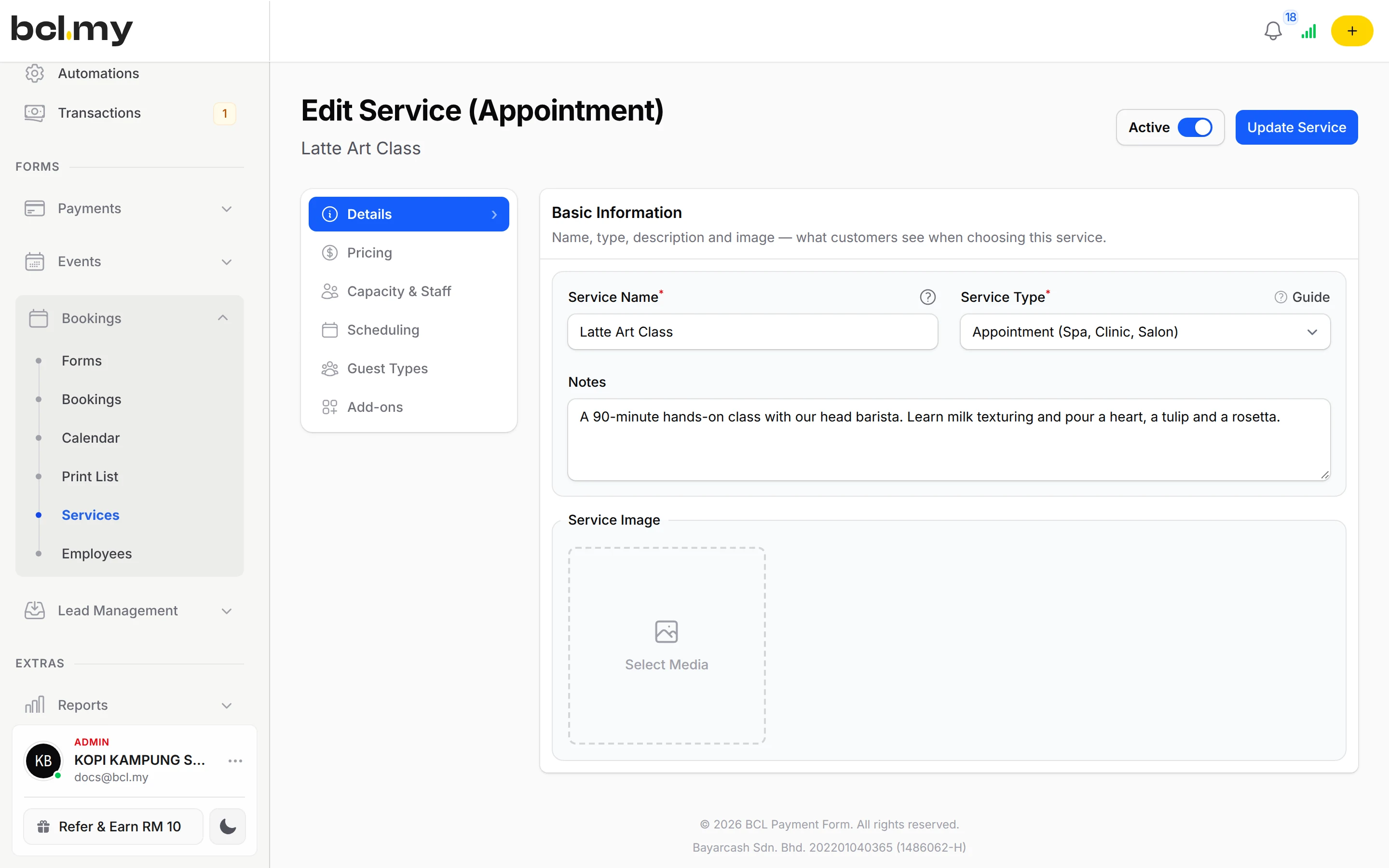
- An Appointment service needs at least one employee in Assigned Staff. Reservation, Ticket, Accommodation and Court services work without staff.
- A new employee starts with every day Off. Switch on their working days or customers cannot book them.
- An unpaid booking is cancelled after about 15 minutes.
- Day & Time Rates allow up to 20 rates per service.
- There is no refund button. Refund outside BCL, then cancel the booking.
See it live
Opens a live example page. Please do not pay.
- Booking Book an Appointment at Studio Rambut Seri Appointments from the Hair Salon template Studio Rambut Seri, a hair salon taking appointments Open the example
- Booking Reserve a Table at Restoran Asam Pedas Melati Table reservations from the Restaurant Reservation template Restoran Asam Pedas Melati, a family restaurant taking table reservations Open the example
Questions owners ask
What can customers book?
Five types: Appointment (spa, clinic, salon), Reservation (table booking), Ticket (museum, tour), Accommodation (hotel, homestay, room) and Court (badminton, tennis, futsal).
Can I charge more on weekends?
Yes. On the service's Pricing tab, add a rate under Day & Time Rates, choose Sat and Sun and enter the Rate per booking. You can also set a rate for a date range such as school holidays.
Can I add a customer who pays at the counter?
Yes. Click Manual Booking, choose the form, service, date and time, enter the customer's details, set Booking Status to Confirmed and click Create Booking.
Can I start before my Bayarcash account is approved?
Yes. New accounts start in Test Mode, so you can build and try your forms first. Test payments go to the Bayarcash sandbox and nothing is charged. Your forms keep working after you connect Bayarcash.
How do refunds work?
BCL has no refund button. Return the money to your customer yourself (for example by bank transfer), then cancel the order in BCL so your records match.
Ready when you are.
Build your first form in Test Mode today. Connect Bayarcash when you want real payments.
Create your first form