
After they pay, the admin runs itself.
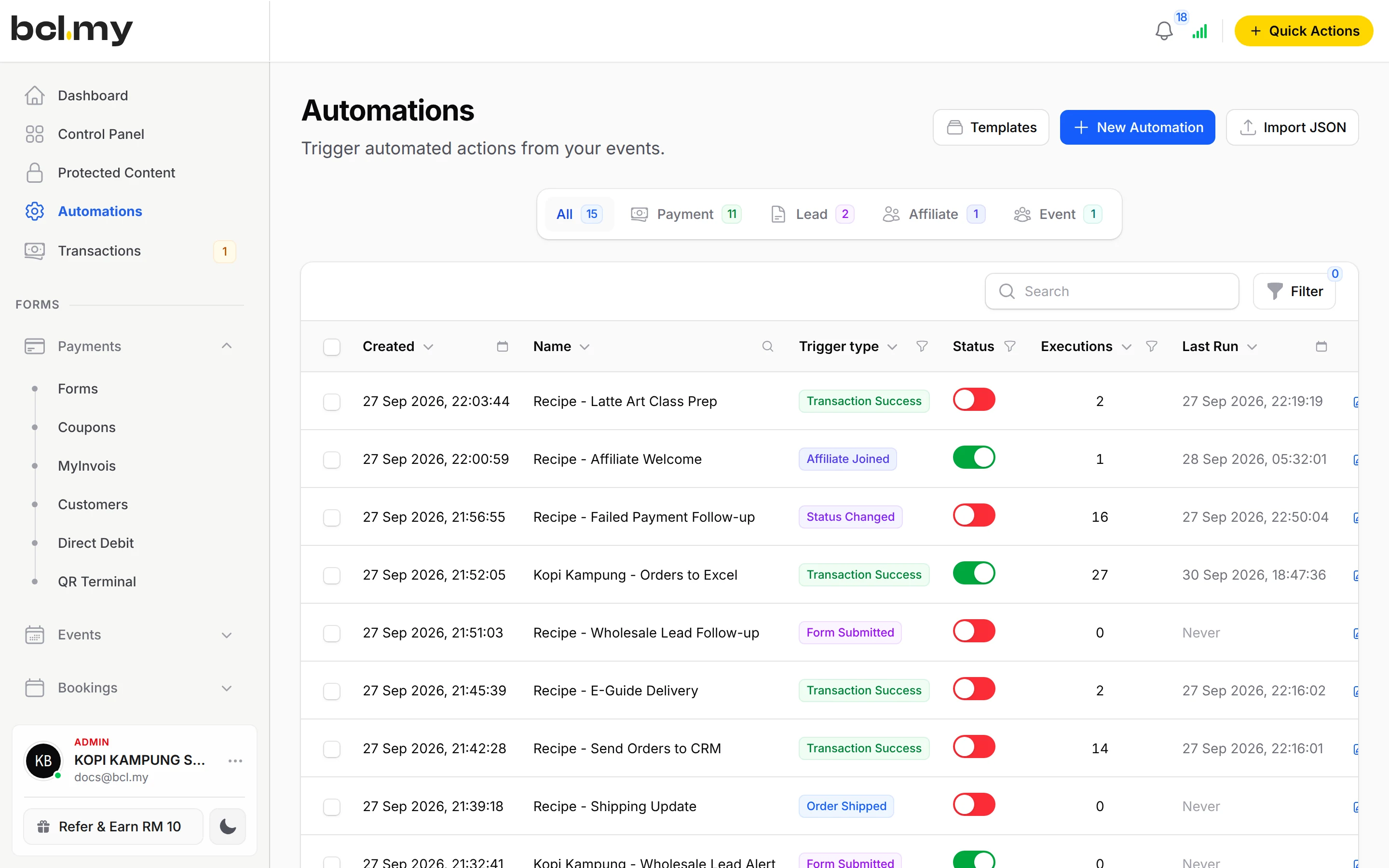
A WhatsApp thank-you with the receipt, a row in Google Sheets, a reminder after a failed payment, an email to your team. Set it once and it runs for every form.
Trusted by these companies













What you get
Reply to every customer, every time
When a payment succeeds, send a WhatsApp through Wabot or Wasapbot with the order number, amount and receipt link.
Your records fill themselves
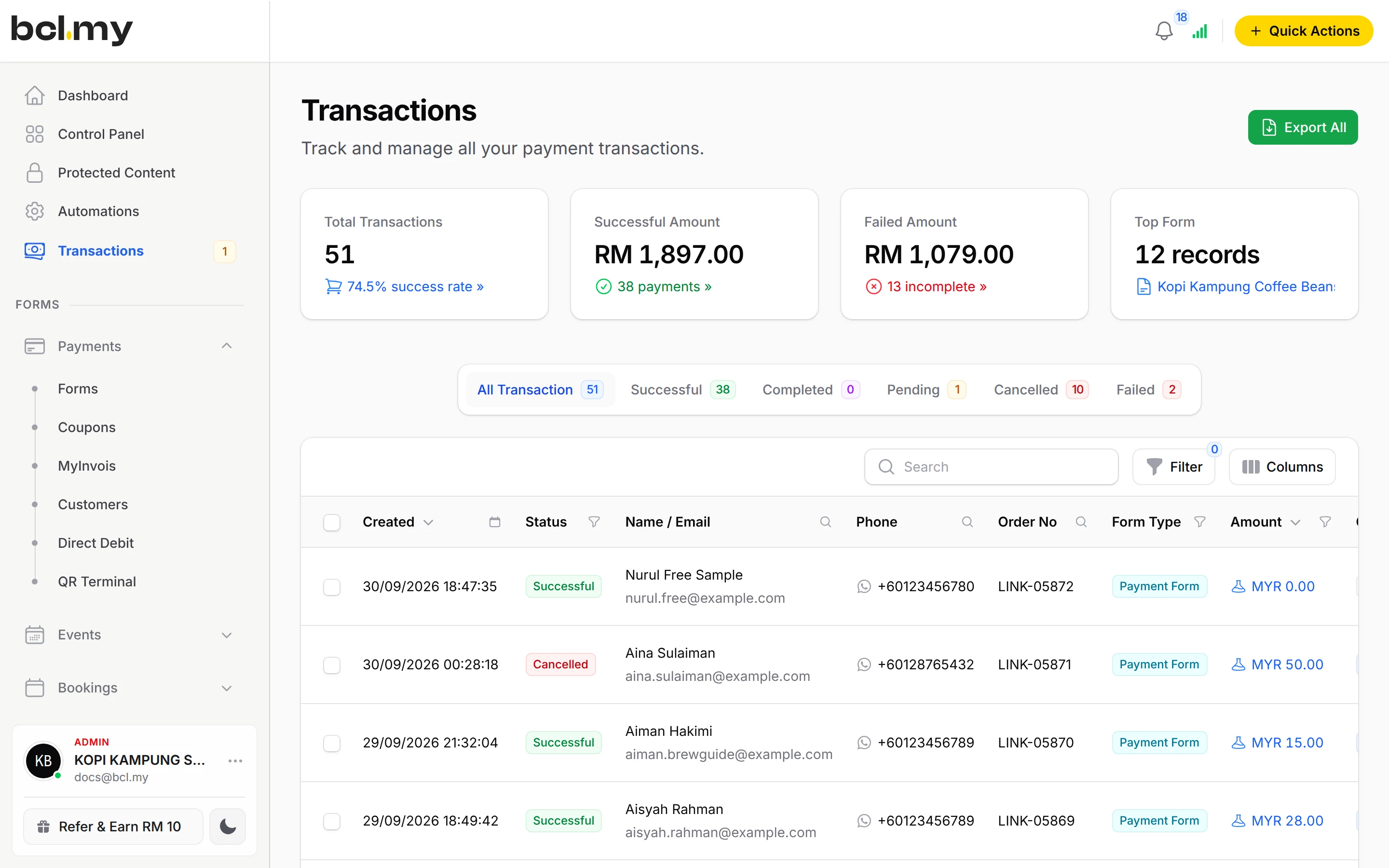
Add each payment or lead as a row in Google Sheets, or send it to your own system with an HTTP Request.
Chase without chasing
Wait an hour after a failed or cancelled payment, then send a reminder. Remind event participants a day after they register.
What you can do
Triggers
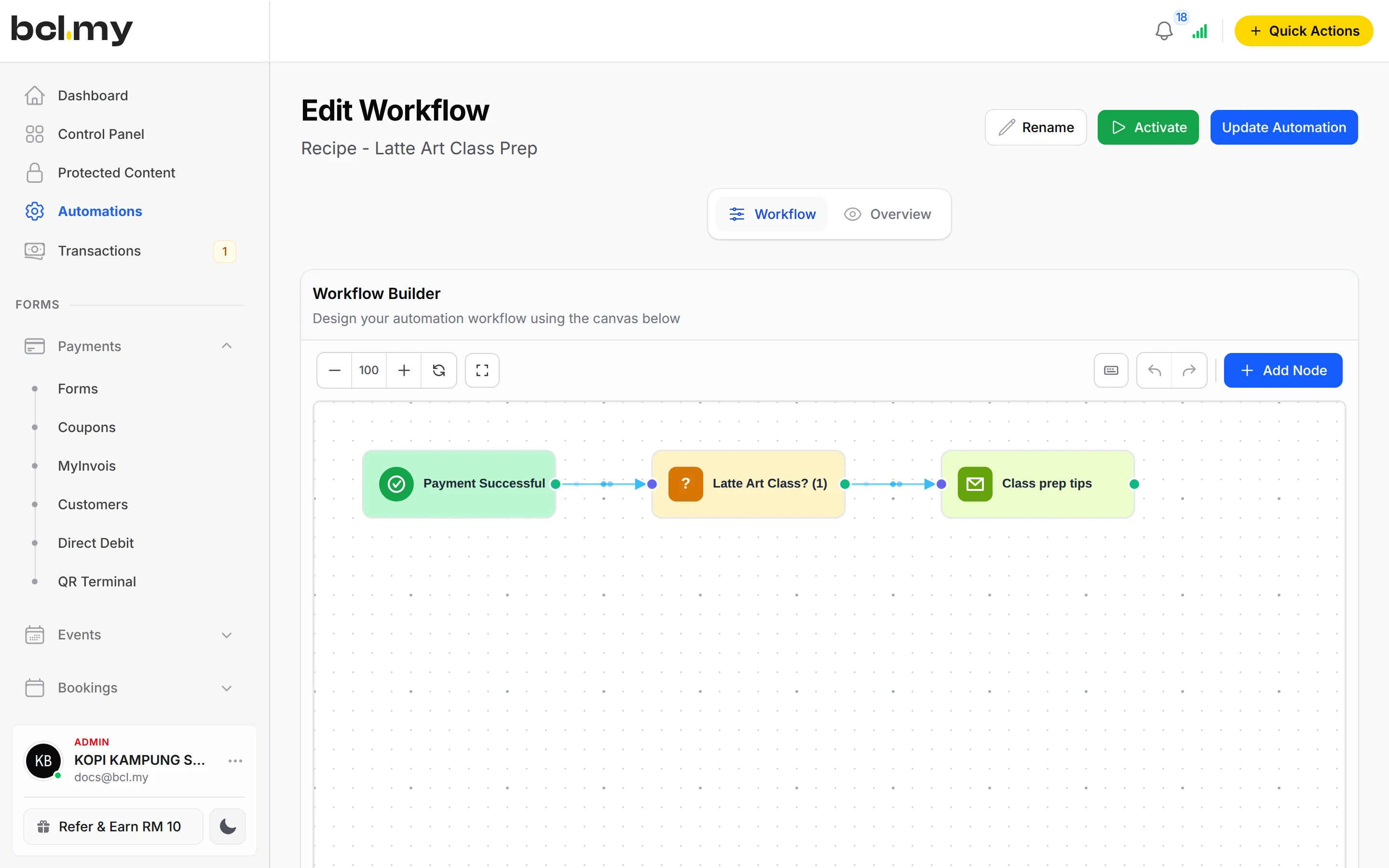
Payment success or status change, lead form submitted, participant created, certificate generated, affiliate joined, and more. One trigger per automation.
Conditions & delays
Continue only when the data matches, such as an amount above a threshold. Wait for a set time, or until a date and time.
Actions
Email, SMS Niaga, WhatsApp (Wabot or Wasapbot), Mail Niaga, Google Sheets and HTTP Request.
14 templates
Thank You Email on Payment, Wabot Payment Notification, Google Sheets Transaction Log, Abandoned Cart WhatsApp, Event Registration Reminder, Welcome New Affiliate and more.
Standard notifications too
Each form also has its own Notification Settings for order emails and WhatsApp success and failed messages, and BCL can alert you on Telegram.
History & copies
Overview shows every run and whether each action worked. Export JSON to back up an automation or copy it to another account.
Start from a ready-made automation
14 templates under Automations > Templates. One click creates the automation, switched off, so you can set your forms and messages before you turn it on.
- After payment Thank You Email on Payment Transaction SuccessSend email EmailUse this template
- After payment Wabot Payment Notification Transaction SuccessWhatsApp with receipt link WabotUse this template
- After payment SMS Niaga Payment + Subscriber Transaction SuccessSMSAdd to SMS Niaga group SMS NiagaUse this template
- After payment VIP Customer Detection Transaction SuccessCondition on amountTwo emails EmailUse this template
- After payment Google Sheets Transaction Log Transaction SuccessAdd a row Google SheetsUse this template
- Failed or cancelled Google Sheets Update Status Transaction Status ChangedUpdate the row Google SheetsUse this template
- Failed or cancelled Incomplete Payment Follow-up Transaction Status ChangedFailed emailCancelled email EmailUse this template
- Failed or cancelled Abandoned Cart WhatsApp Transaction Status ChangedWait 1 hourWhatsApp reminder WhatsAppUse this template
- Leads Webhook on Lead Submission Form SubmittedHTTP Request Your own systemUse this template
- Leads Lead Form SMS Notification Form SubmittedSMS to you SMSUse this template
- Events Event Registration Reminder Participant CreatedWait 1 dayWhatsApp reminder WabotUse this template
- Events WasapBot Event Reminder Participant CreatedWait 1 dayReminder WasapbotUse this template
- Events Certificate Wabot Notification Certificate GeneratedWhatsApp the link WabotUse this template
- Affiliates Welcome New Affiliate Affiliate JoinedWelcome emailAdd to Mail Niaga list Email + Mail NiagaUse this template
Used by
Jobs it helps with
Good to know
- WhatsApp, SMS Niaga, Mail Niaga and Google Sheets actions need that service connected under Platform Setup > Integrations first. WhatsApp messages go out from your own number through Wabot or Wasapbot.
- Each team can have up to 20 automations. One automation can hold several actions.
- Each automation has exactly one trigger.
- Automations need no add-on.
Questions owners ask
What is the difference between Automations and a form's Notification Settings?
Notification Settings control the standard emails BCL sends for one form. Automations let you decide what happens and when, for many forms at once: WhatsApp messages, extra emails, Google Sheets, mailing lists or your own system.
Is there a template for sending WhatsApp after a successful payment?
Yes: Wabot Payment Notification, with the Payment Success trigger and a Send Wabot node. Connect Wabot or Wasapbot under Platform Setup > Integrations first.
Do I have to switch an automation on for each form?
No. An automation runs for every form that matches its trigger. To limit it to some forms, choose them in the trigger's settings.
Do I need technical knowledge to use automations?
A little. You connect a trigger to one or more actions on a canvas. The easiest start is Templates: pick the closest example and change only the wording.
Do I need an add-on?
Not to start. Payment forms, payment links, coupons and transactions need no add-on. Add-ons unlock Event Management, Lead Forms, OTP-Protected Content, COD & Manual Transfer, LHDN E-Invoice and Courier Integration. Each is monthly or yearly, renewals are invoiced (never auto-charged), and you can cancel yourself.
What is BCL, and how does it work with Bayarcash?
BCL is where you build your forms, pages and payment links and see every sale. Bayarcash is the payment gateway behind it: it collects the payment and pays it out to your bank, minus its fee. To take real payments you need an approved Bayarcash merchant account.
Ready when you are.
Build your first form in Test Mode today. Connect Bayarcash when you want real payments.
Create your first form