
Fill your chairs, not your chat.
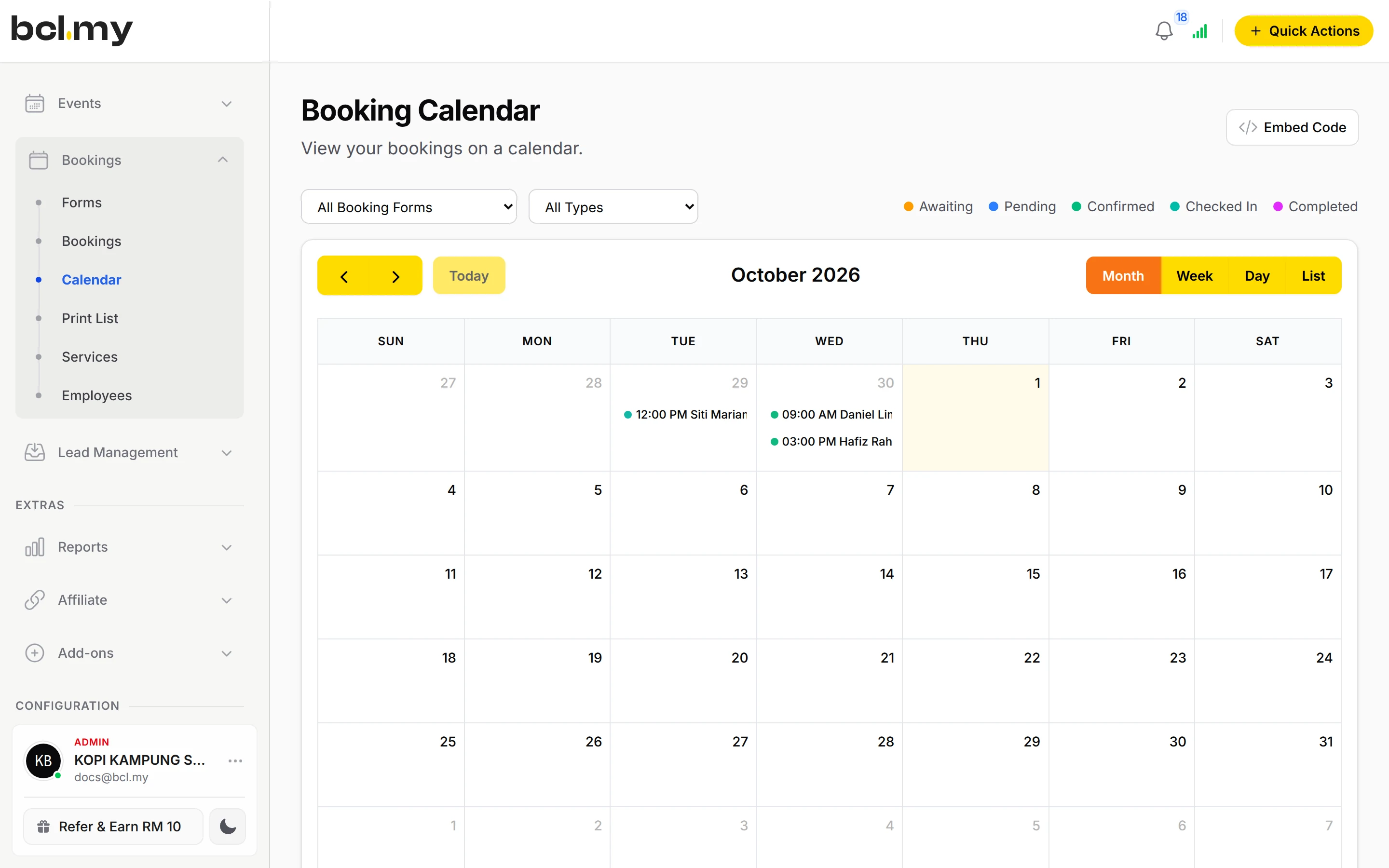
Clients book a service, choose a stylist and an open time, and pay online to lock it in. You see the whole day on one calendar. One link. Every slot, every staff.
Trusted by these companies











Sound familiar?
"Slot ada lagi tak?"
Booking by chat means back and forth on times, while you have scissors in your hand. By the time you reply, the client has booked elsewhere.
I lose bookings just because I could not reply fast enough.
No-shows on a busy Saturday
A client books the two-hour colour slot and never turns up. That is the chair empty and another client turned away.
Saturday no-shows hurt the most.
Three stylists, one paper diary
Who is in today, who is on leave, who does keratin. Double bookings happen when the diary and the chat do not match.
What you can do with one link
Take bookings & appointments
An Appointment booking form: clients pick a service such as a haircut or colouring, then a stylist or No Preference, then an open time, and pay to confirm.
Learn moreGet paid on WhatsApp
For a bridal package or a custom quote, send the client a Payment Link for that amount in WhatsApp.
Learn moreTake payments at your counter
For walk-ins and add-on treatments, key the amount into QR Terminal and the client scans the DuitNow QR at the counter.
Learn moreSet up in 5 steps
See it live
Studio Rambut Seri, hair appointments
- Built from the Hair Salon template
- Haircut, colouring and treatment, each with its own duration
- Choose a stylist, then an open time
- Pay online to lock in the slot
Open the example: Studio Rambut Seri, hair appointments
Opens a live example page. Please do not pay.
How your customers pay
Clients pay when they book, by FPX or DuitNow QR from day one, and by card or e-wallet once Bayarcash switches them on. At the counter, QR Terminal takes DuitNow QR on your phone. Note that QR Terminal always takes real payments, even in Test Mode.
Good to know
- No deposit or part-payment: the client pays the booking price in full when they book.
- A booking that is not paid within about 15 minutes is cancelled and the slot opens again.
- Coupons on booking forms must be set to Apply to Form Total.
- No refund button. Return the money yourself, then cancel the booking in BCL.
After they pay
Each booking lands on the Calendar and in Bookings. Booking emails remind the client 1 day and 1 hour before, and you check them in by QR when they arrive.
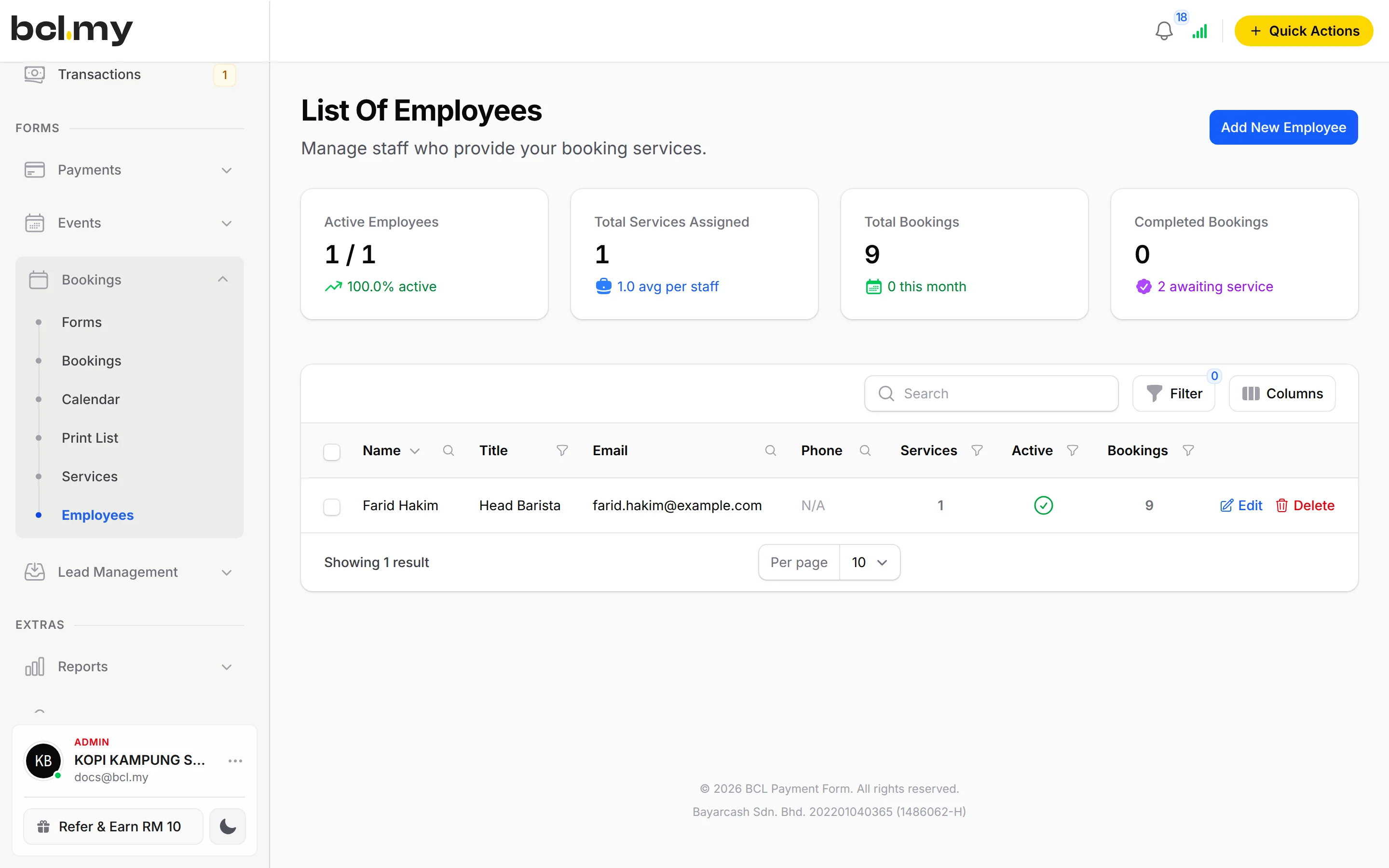
TeamEach stylist can get booking emails for their own clients. Give front-desk staff their own login with only the permissions they need.
AutomationsSend aftercare tips to everyone who books one treatment, right after they pay.
TransactionsSee every paid booking in Transactions, and print the day's list for the front desk.
Questions owners ask
Can clients choose their stylist?
Yes. Set Staff Selection Mode on the booking form to Optional, where clients can pick a stylist or No Preference, or to Required. With Disabled, BCL assigns an available stylist for you.
Do clients get a reminder before their appointment?
Yes. BCL's booking emails include reminders 1 day and 1 hour before each booking. You can check them on the booking form's Notifications page.
Can clients reschedule or cancel themselves?
Yes, if you allow it. On the service's Scheduling tab, turn on Allow Rescheduling and Allow Cancellation, and set how many hours before the booking they must do it.
Can I add a walk-in client to the calendar?
Yes. In Bookings, click Manual Booking, choose the service, time and stylist, and set the status to Confirmed if they paid at the counter.
Can I start before my Bayarcash account is approved?
Yes. New accounts start in Test Mode, so you can build and try your forms first. Test payments go to the Bayarcash sandbox and nothing is charged. Your forms keep working after you connect Bayarcash.
Which payment methods can my customers use?
FPX online banking and DuitNow QR come as standard. Cards (Visa and Mastercard), e-wallets (Touch 'n Go eWallet, Boost, GrabPay), Buy Now Pay Later (SPayLater, Grab PayLater, Boost PayFlex) and cross-border QR (Singapore, Indonesia, Thailand and China) appear once Bayarcash switches them on for your account. Prices are in RM.
Owners like you also run
Ready when you are.
Build your first form in Test Mode today. Connect Bayarcash when you want real payments.
Create your first form