
Every sale in one place.
Find any payment by name, phone or order number, open its receipt, export the month for your accounts, and watch sales land on a Live Dashboard.
Trusted by these companies














What you get
Find any payment in seconds
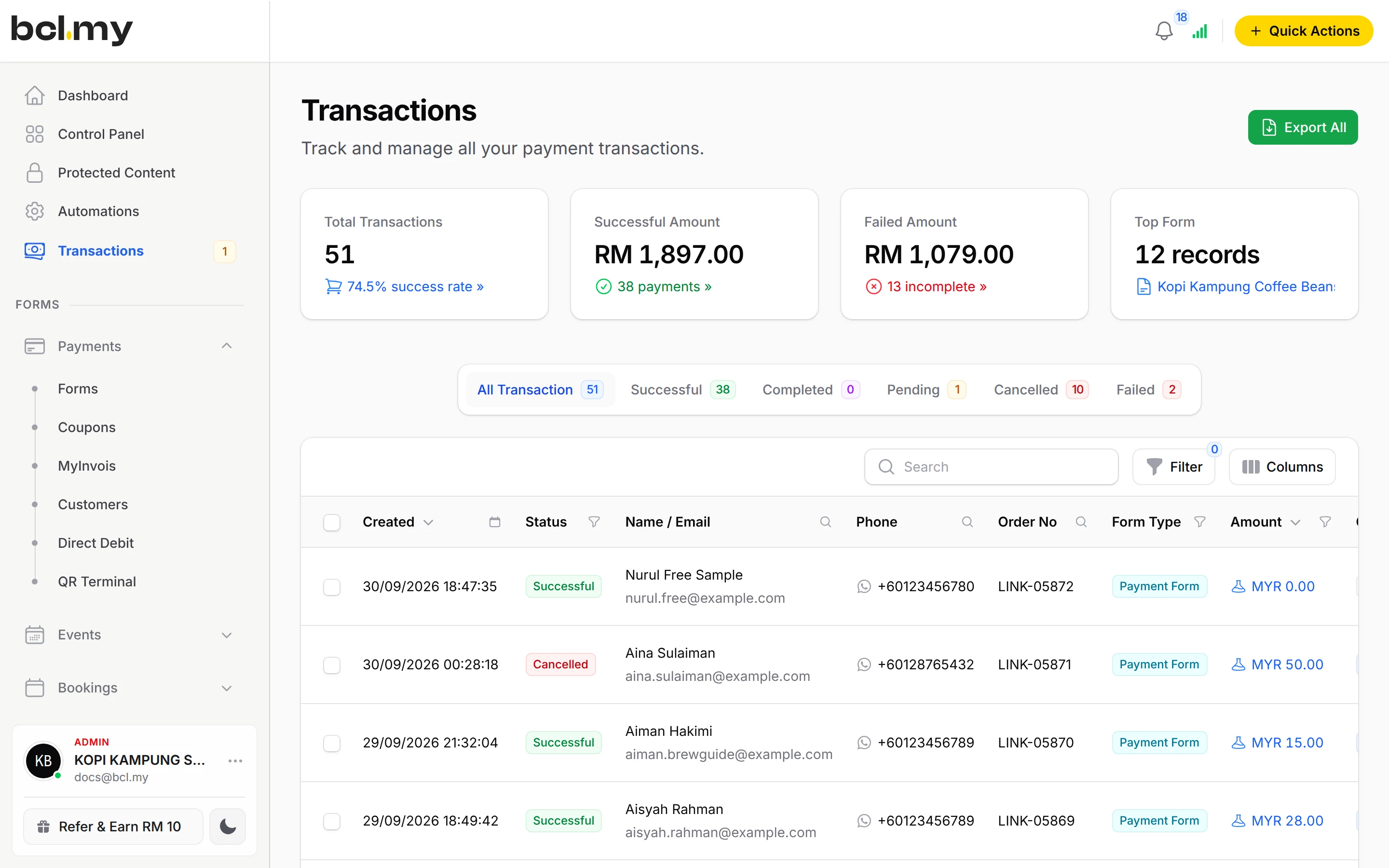
Search by name, email, phone, Order No or your remarks. Filter by period, status, method, form, item, portal, amount or team member.
Ready for your accounts
Export All to Excel with the columns you choose, including custom fields and affiliate details. Big exports run in the background.
Sales you took elsewhere, in the same list
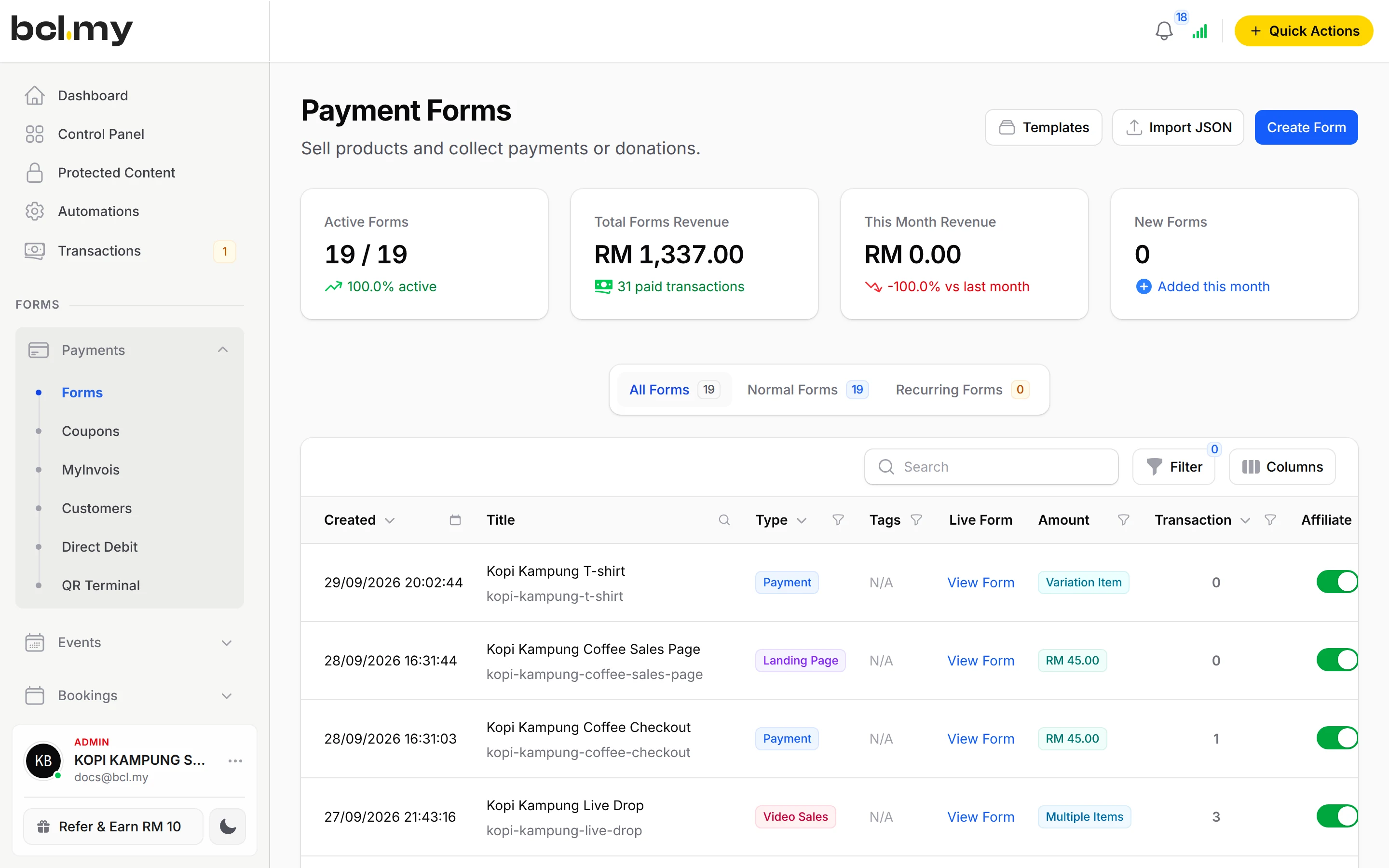
Import Records from Excel or CSV puts booth or bank-transfer sales on the form as paid records. You choose whether BCL emails anyone.
What you can do
Status tabs
All Transaction, Successful, Completed, Pending, Cancelled and Failed, each with a count. Mark orders as completed once delivered.
Receipts & invoices
View Receipt, Download Receipt and Download Invoice from any row. Order Details lists the items, variations and delivery address.
Export to Excel
From Transactions for all forms, or from one form's page to include its Custom Fields. Export Selected for a few rows.
Import from Excel or CSV
A name and email column is enough. Match the columns, then choose: skip duplicates, email receipts, run webhooks and automations, create e-invoice drafts.
Live Dashboard
A private link per payment or event form showing revenue, orders, top products, affiliates and visitor sources as they happen. Set an expiry, regenerate or delete it.
Customers
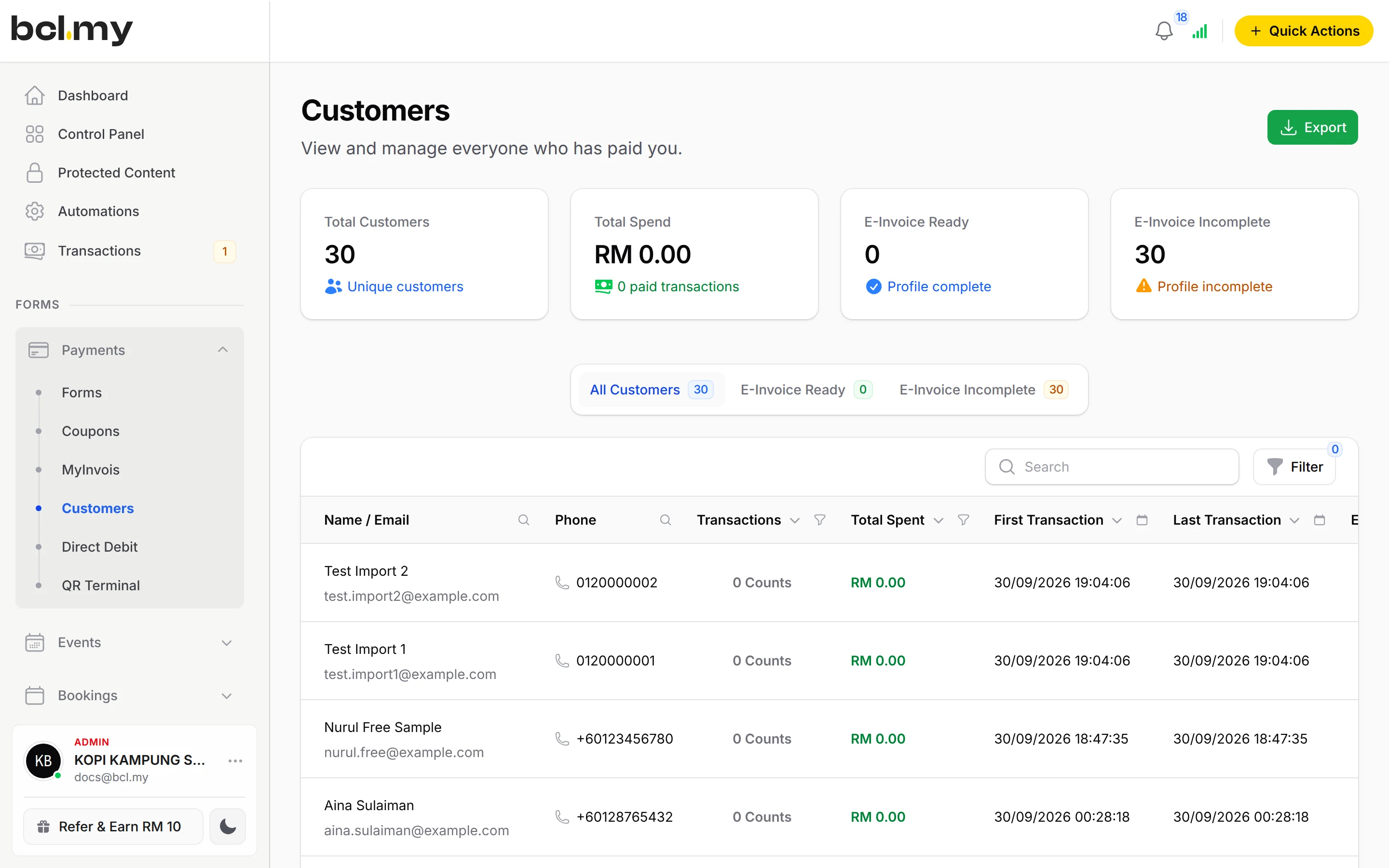
The Customers page groups buyers by email with their spend and e-invoice details.
Sheets, Excel & Power BI
Send each payment to Google Sheets with an automation, or connect Excel and Power BI.
Used by
Jobs it helps with
Good to know
- Transactions shows only the mode you are in: test payments with Test Mode on, real ones with it off.
- The Live Dashboard counts live payments only. Booking forms and lead forms do not have one.
- Only payment form records and event participants can be imported. Lead submissions and customers cannot.
- An import has no undo. Try two or three rows first.
- No refund button: refund outside BCL, then cancel the order.
Questions owners ask
My test payments have disappeared from Transactions. Where are they?
Transactions shows only the mode you are in. With Test Mode on you see test payments, and with it off you see real ones. Switch the mode in Platform Setup > Payment to see the other set.
What is the difference between Successful and Completed?
Successful means the payment went through. Completed is a successful transaction you marked as done with Mark As Completed, for example after you delivered the order.
How do I get a Live Dashboard link for my event?
On Events > Events, open the three-dot menu on the event, click Live Dashboard, then Generate Token. Choose when the link expires and copy it. Payment forms have the same action.
Can I import customers who already paid from Excel?
Yes. Open the form, click Import Records, upload an .xlsx, .xls or .csv file with a name and email column, match the columns and confirm. Each row becomes one paid record on that form.
How do refunds work?
BCL has no refund button. Return the money to your customer yourself (for example by bank transfer), then cancel the order in BCL so your records match.
Does BCL handle LHDN e-invoices?
Yes, with the LHDN E-Invoice add-on. BCL submits your e-invoices to MyInvois through Bayarcash as your intermediary, and lists any that fail so you can fix them.
Ready when you are.
Build your first form in Test Mode today. Connect Bayarcash when you want real payments.
Create your first form