
Your phone is now a payment counter.
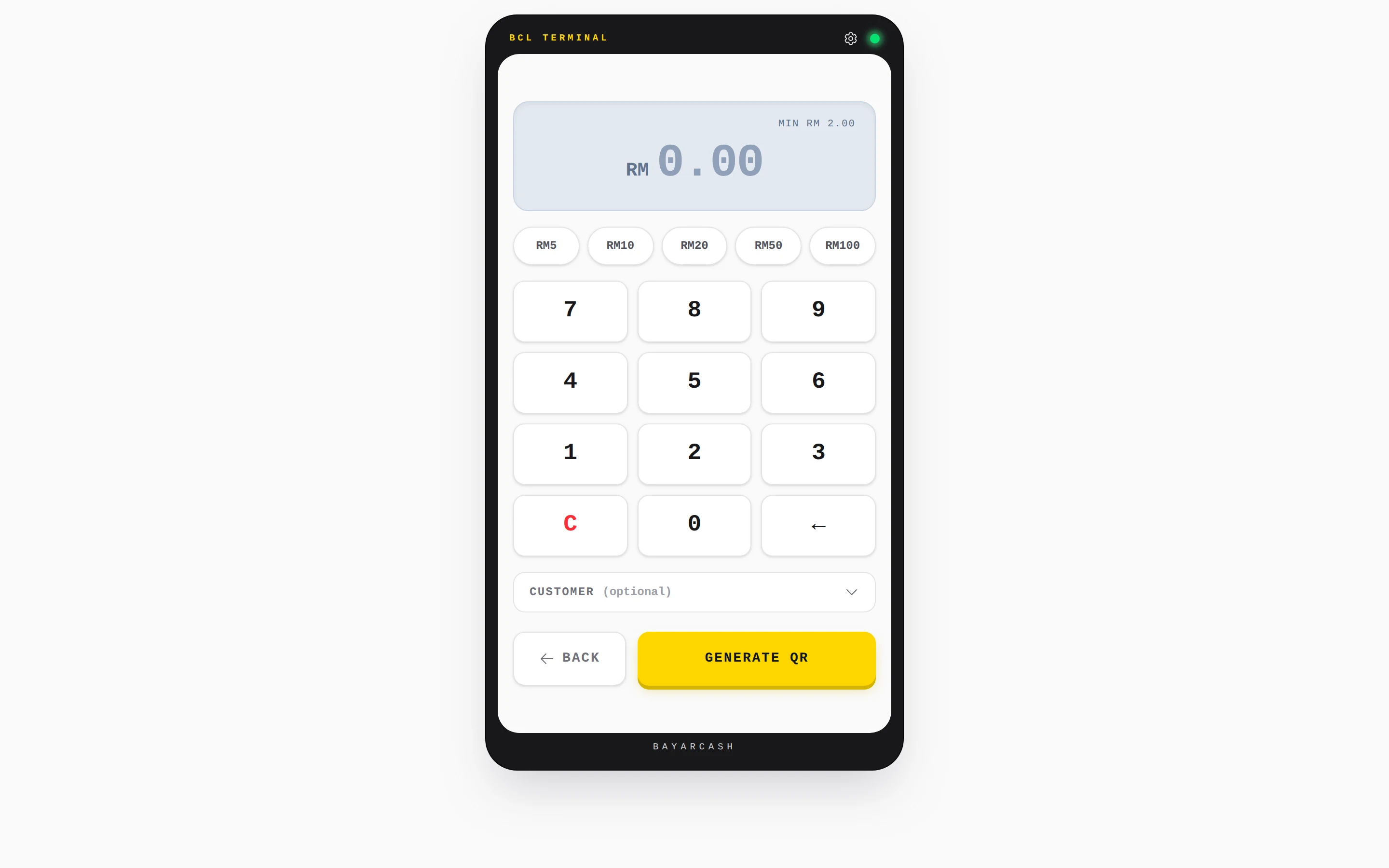
Key in the amount, show the QR, and hear the chime when the customer's payment lands. Works at a stall, a bazaar table, a shop counter or an event booth.
Made for Malaysia's micro SMEs.
What you get
No hardware to rent
Any phone, tablet or laptop with a browser is your terminal. Set it up once under Platform Setup > Payment, then open it from Quick Actions.
The amount is on the code
Unlike a printed QR, each code carries the amount you keyed in, so the customer cannot pay the wrong sum. The screen shows Payment Received when it arrives.
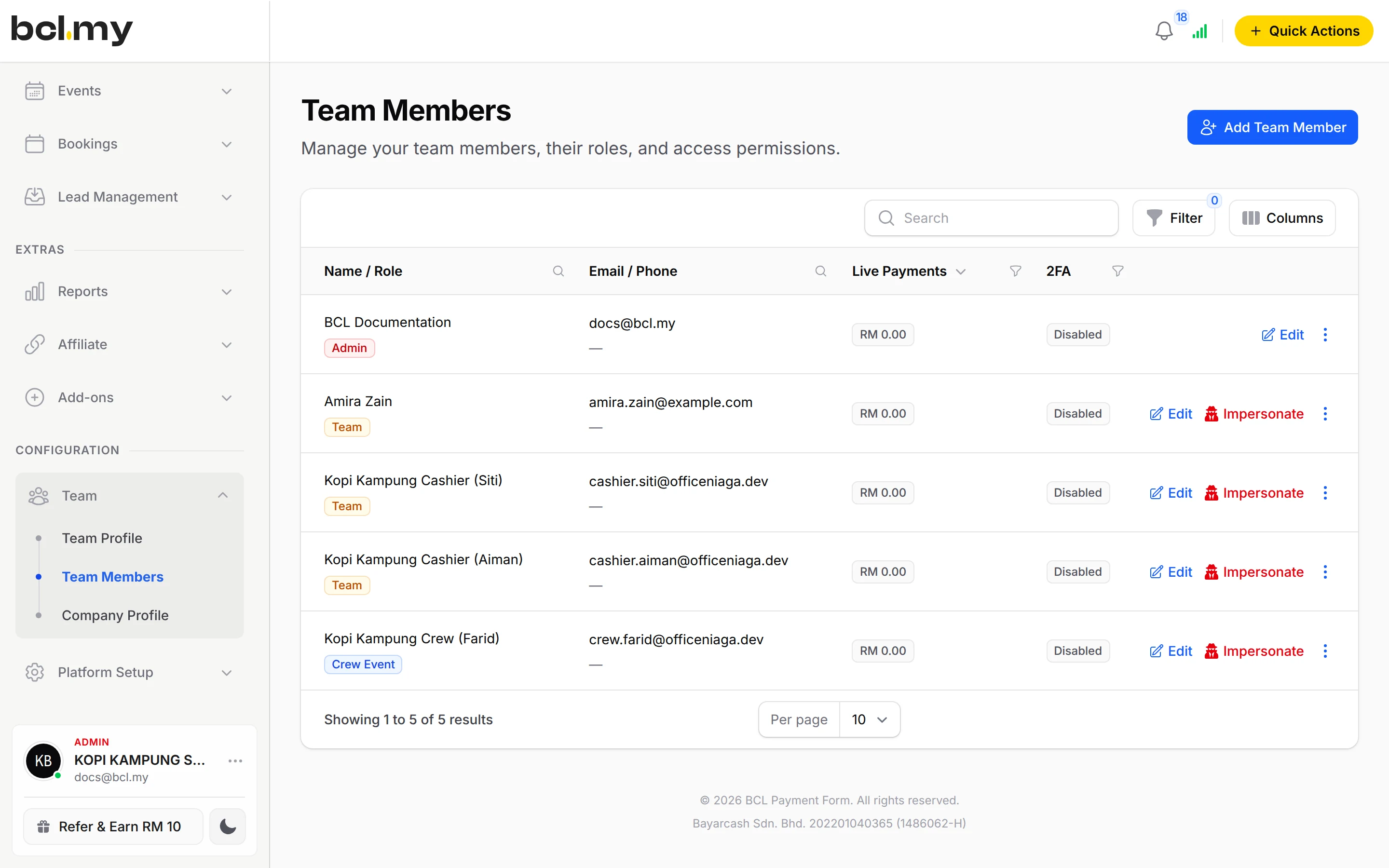
Each cashier, their own login
Add counter staff as a Team member with Can View Transactions. Each one takes payments under their own login and sees only their own sales.
What you can do
Key in or tap a quick amount
Use the keypad, or your own Quick Amounts (RM). The minimum is RM2.00.
Add the customer
Open Customer (optional) to record a name, phone or email against the payment.
Offer more than one QR channel
Choose your QR Payment Channels, such as DuitNow QR. With one channel, the terminal uses it without asking.
Check a late payment
If the code expires, tap Customer already paid? Check status before you make a new one. Or tap REGENERATE QR for a fresh code at the same amount.
New POS screen
The POS screen shows the amount, the code, the order number and a countdown, then resets itself for the next customer.
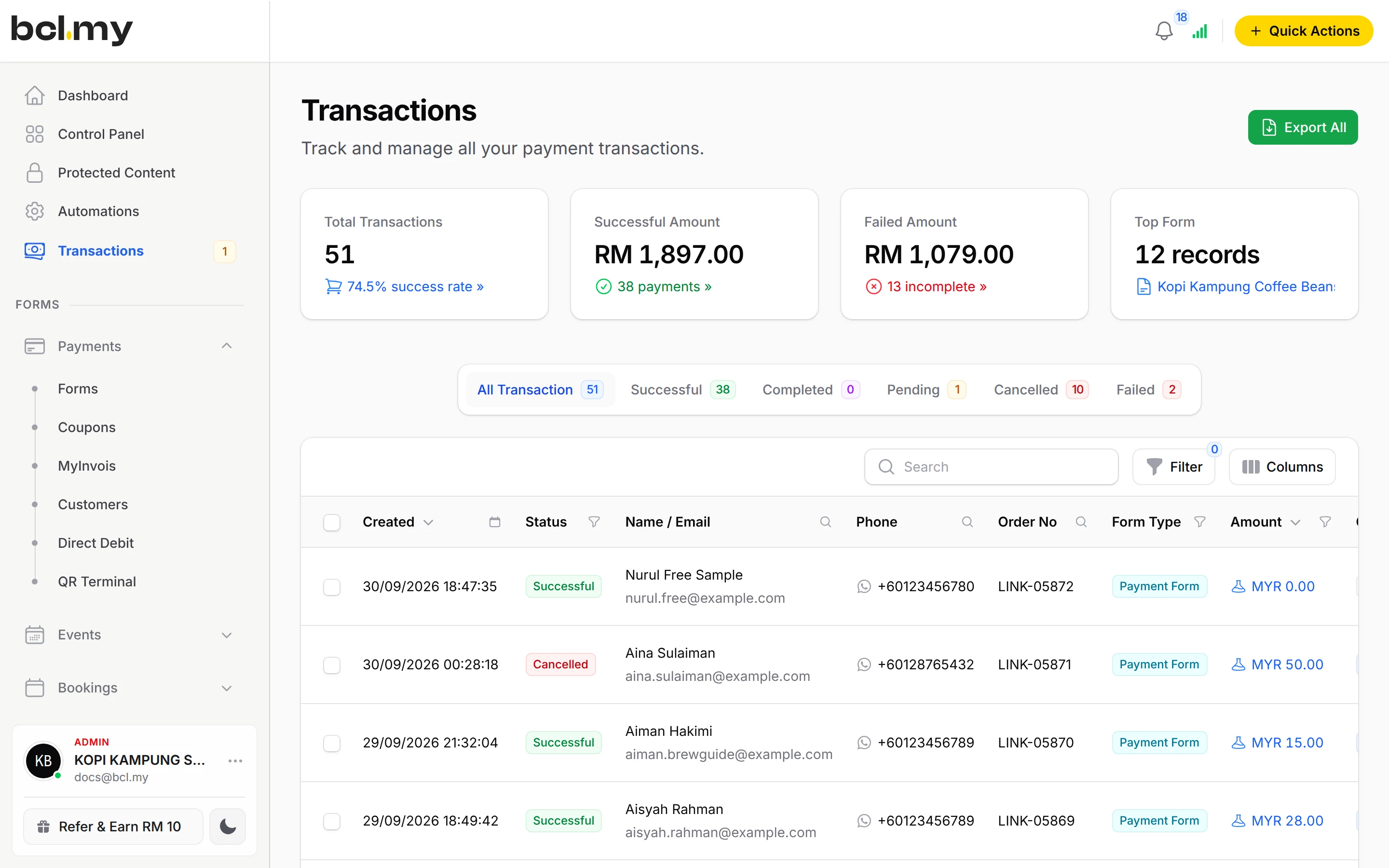
Every payment in Transactions
QR payments are recorded like any other sale, against the cashier who took them.
Used by
Jobs it helps with
Good to know
- QR Terminal always takes live payments through your connected Bayarcash account, even when Test Mode is on. Test it with a small amount.
- The minimum amount is RM2.00.
- Each code is valid for about a minute. Tap REGENERATE QR for a fresh one.
- QR Terminal needs a connected Bayarcash account; its settings tab is locked until then.
- There is no Cashier role. Use the Team role with Can View Transactions.
- While Test Mode is on, Transactions lists test payments only, so live QR payments show there once Test Mode is off.
Questions owners ask
Which QR methods can my customer scan?
DuitNow QR comes as standard. Other QR channels appear in QR Payment Channels once Bayarcash switches them on for your portal.
The QR code expired but my customer says they paid. Did I lose the payment?
No. On the expired screen, tap Customer already paid? Check status. BCL checks the payment again before you make a new code.
Can my cashier use QR Terminal without seeing my whole account?
Yes. Add them as a Team member and turn on only Can View Transactions. They get QR Terminal and see only the payments they take.
Does QR Terminal work in Test Mode?
It always takes real payments through your connected Bayarcash account, even in Test Mode. Test with the smallest amount, RM2.
What is BCL, and how does it work with Bayarcash?
BCL is where you build your forms, pages and payment links and see every sale. Bayarcash is the payment gateway behind it: it collects the payment and pays it out to your bank, minus its fee. To take real payments you need an approved Bayarcash merchant account.
Which payment methods can my customers use?
FPX online banking and DuitNow QR come as standard. Cards (Visa and Mastercard), e-wallets (Touch 'n Go eWallet, Boost, GrabPay), Buy Now Pay Later (SPayLater, Grab PayLater, Boost PayFlex) and cross-border QR (Singapore, Indonesia, Thailand and China) appear once Bayarcash switches them on for your account. Prices are in RM.
Ready when you are.
Build your first form in Test Mode today. Connect Bayarcash when you want real payments.
Create your first form